Hidden features and shortcuts
DropSet keeps its screens deliberately clean, which means a lot of its best tricks don't announce themselves. Most of them are gestures — a long-press here, a swipe there — plus a handful of automatic behaviours that quietly save you taps every session.
This page collects all of them in one place. None of these are required to use the app, but each one shaves seconds off something you do constantly, and that adds up over a training week.
Last reviewed 2026-07-10 · matches app v0.9.0.32
In the logger
The logger hides a full tool tray behind the workout header. Swipe down on the header (or tap the small arrow handle) and it slides open with four tools: a Timer for intervals and HIIT, a Tempo metronome, live Session Stats, and quick Settings. Swipe up or tap anywhere else to tuck it away again.
The Tempo button does double duty: a tap toggles the rep-tempo metronome on or off, while holding it for about half a second opens the tempo editor so you can set your own eccentric, pause and concentric timings.
Long-press an exercise name to play its how-to video right there in the workout — a plain tap opens the full exercise details instead. 308+ exercises have videos.
To reorder exercises mid-workout, press and hold an exercise in the carousel until it lifts, then drag it into place.
Faster set entry
You rarely need to type at all. Every set row shows last session's numbers as faded placeholders, and ticking off a set with empty inputs adopts those ghosted values automatically — checking the box means "same as last time". You can also tap the previous-session column on any row to copy last time's weight and reps into the inputs before you edit them.
When you do type, every numeric field selects its contents the moment you focus it, so you overwrite the old value instantly instead of backspacing first.
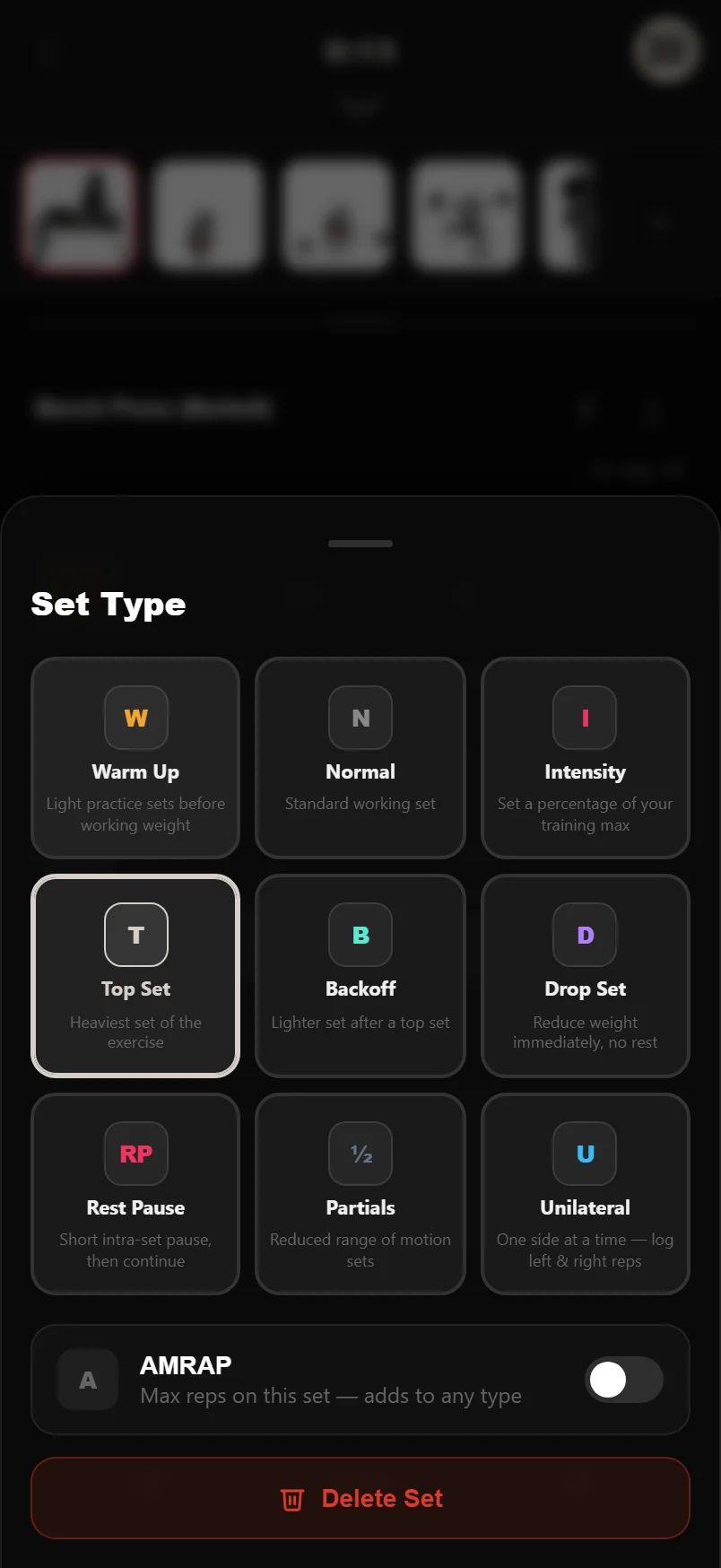
Tap a set's number badge to change its type — DropSet has 10 set types, from warm-ups to drop sets.
Long-press that same badge (about half a second) to delete the set, with a confirm so you can't do it by accident.
Tap the tick column header (the ✓ above the checkboxes) to complete every remaining set of the exercise in one go.
Rest timer tricks
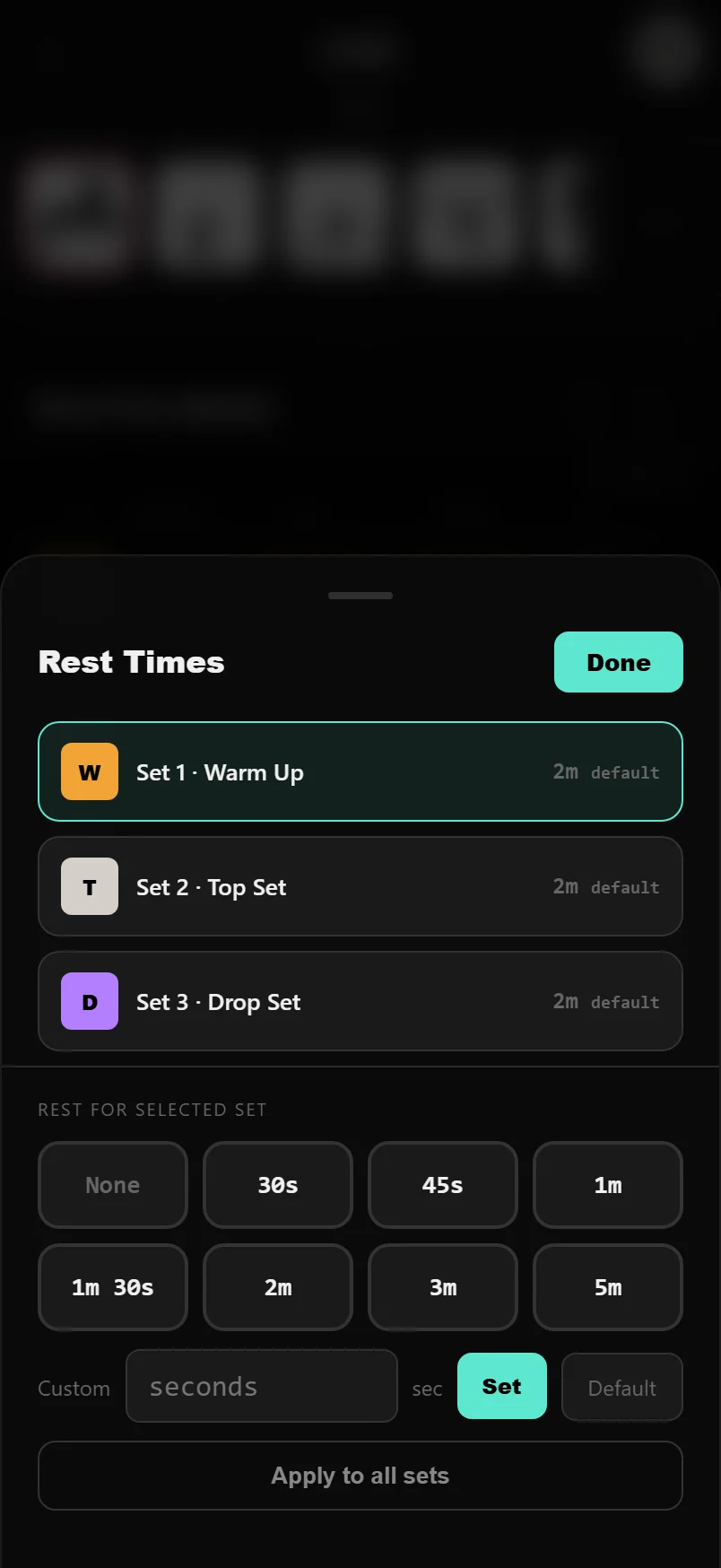
Open an exercise's ⋮ menu and tap Rest Times to get the rest drawer: a per-set list, one-tap presets from 30 seconds to 5 minutes, a custom field for anything else, and None — which skips the timer entirely and auto-advances to your next set, handy for supersets and circuits.
Set the right rest once, then hit Apply to all sets so every set of that exercise uses it. No need to edit rows one by one.
Around the app
The dashboard responds to gestures too. Long-press the week overview strip to jump straight into the full History calendar, and swipe sideways on the weekly PRs, training load and body-part charts to flip between their metrics (volume, sets, reps and more).
In Analytics, swipe left or right anywhere on the panel to move between the Summary, Strength, Volume and Program tabs. On an exercise's detail page, the same sideways swipe cycles Overview, History and Charts.
Tap Customize at the bottom of the dashboard, then drag the rows to reorder your cards — and pin goals from the Goals panel to track them on the dashboard itself.
Any finished workout can become a reusable routine: tap Save as Routine on the Workout Complete screen, or open any past session in History and save it from there.
Small but mighty
A few behaviours you never trigger deliberately, but benefit from constantly. When you sign in, the 6-digit email code submits itself the moment you enter the last digit — no Verify tap needed. While you're typing in a set, the fixed bottom bar hides so the keyboard never buries your inputs, then returns when you're done.
The Android back button is drawer-aware: each press closes the topmost sheet or drawer, one at a time, instead of throwing you out of the screen. And if you press back during a live workout, DropSet asks first — your session stays active either way, so you can wander off to check a chart and resume exactly where you left off.
Tap the version number in Settings > About to open the full release notes and see what changed in every update.
Common questions
Will I lose my workout if I press back or leave the logger?
No. Your session stays active in the background. Back during a live workout shows a quick confirm, and even if you leave, you resume exactly where you left off.
How do I watch an exercise video without leaving my workout?
Long-press the exercise name in the logger and the how-to video plays in place. A normal tap opens the exercise's full detail page instead.
Can I reorder exercises after a workout has started?
Yes — press and hold an exercise in the logger carousel until it lifts, then drag it to its new position. The dashboard works the same way via Customize.
What's the fastest way to log a set identical to last week's?
Just tick it off. Checking an empty set adopts the faded previous-session values shown in the inputs, so a repeat set is literally one tap.
Put it into practice
DropSet is free during beta — 50 proven programs, automatic progression, rest timers and PR tracking, all on your phone.