Logging workouts
The logger is where you'll spend most of your time in DropSet, so it's built around one idea: between sets you have ten seconds and one thumb. Everything - changing a set type, starting the rest timer, checking what you did last time - is one tap from the set row.
This page walks through a full workout, from starting one to the finish screen. Skim the headings for the part you need.
Last reviewed 2026-07-10 · matches app v0.9.0.32
Starting a workout
Open the Log Workout tab to start fresh or pick a session. The + button starts an empty freestyle workout; below it, your program's next session and recent routine sessions are one tap away, pre-filled with their planned sets and your previous weights.
Your workout is saved on the device continuously. Close the app, take a call, or let the phone die - when you come back, DropSet resumes exactly where you left off.
The exercise carousel
Across the top of a live workout sits a carousel with one cell per exercise. Tap a cell to jump to that exercise, or press and drag to reorder the session on the fly. A green tick marks each finished exercise, and the + cell at the end adds a new one.
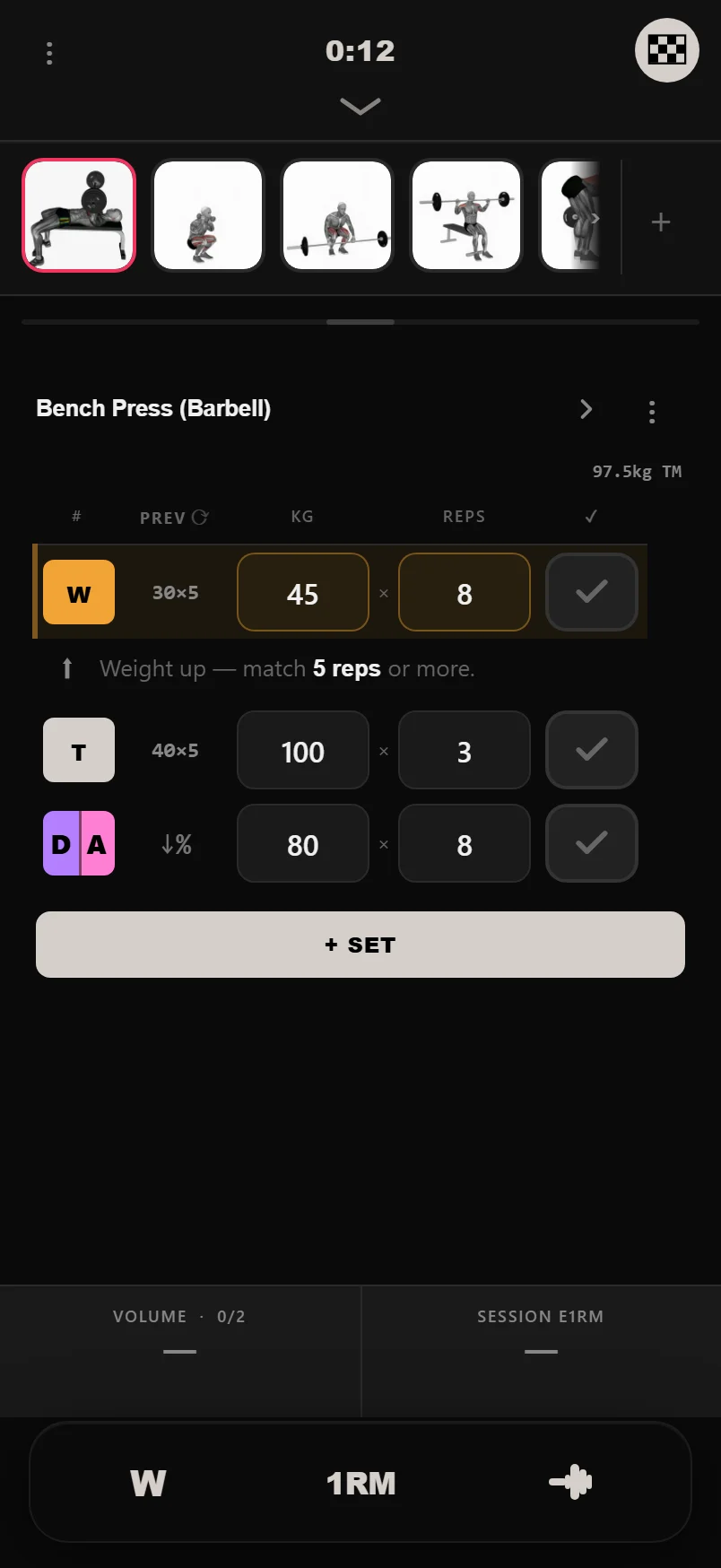
Long-press an exercise name to play its how-to video instantly; a normal tap opens its detail page.
Tap the tick column header to complete every remaining set of an exercise at once.
The set types
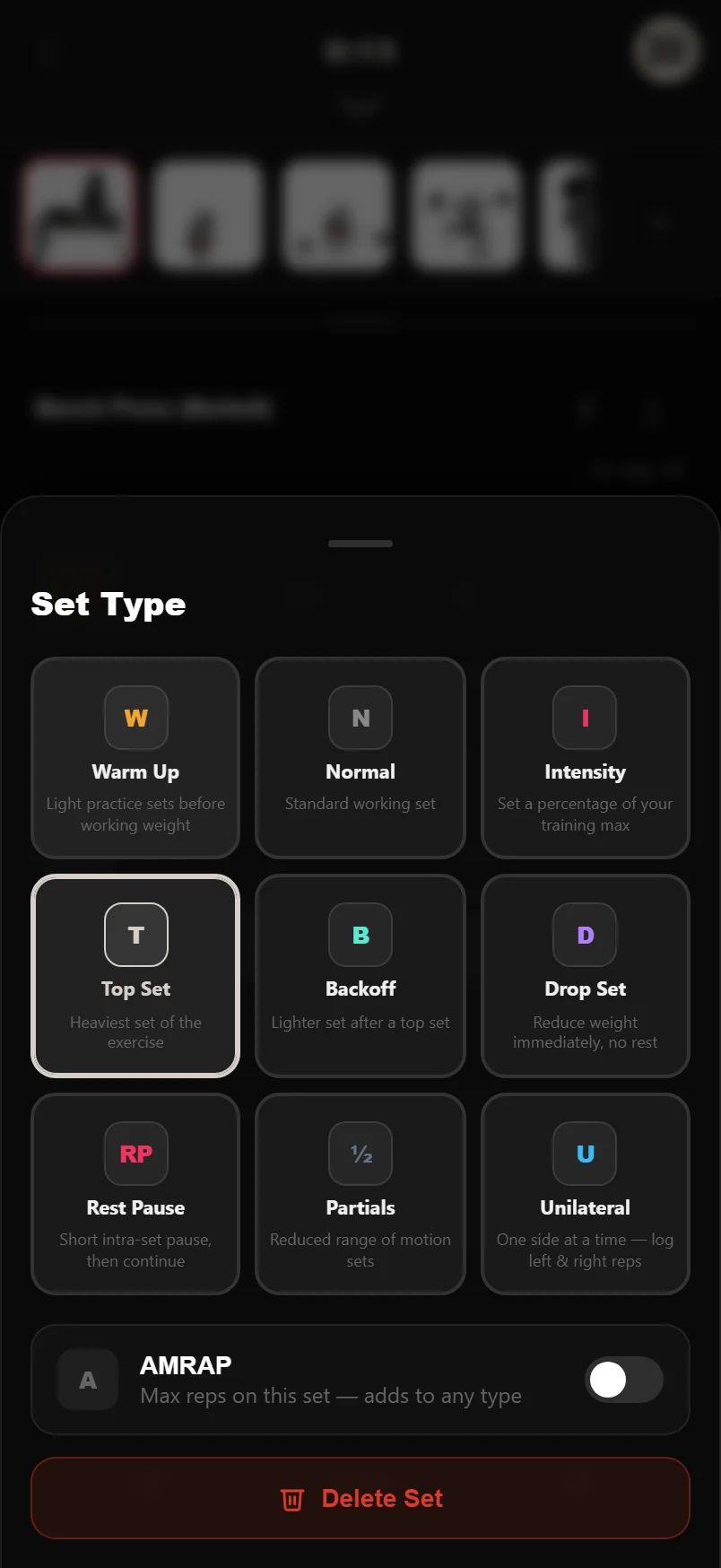
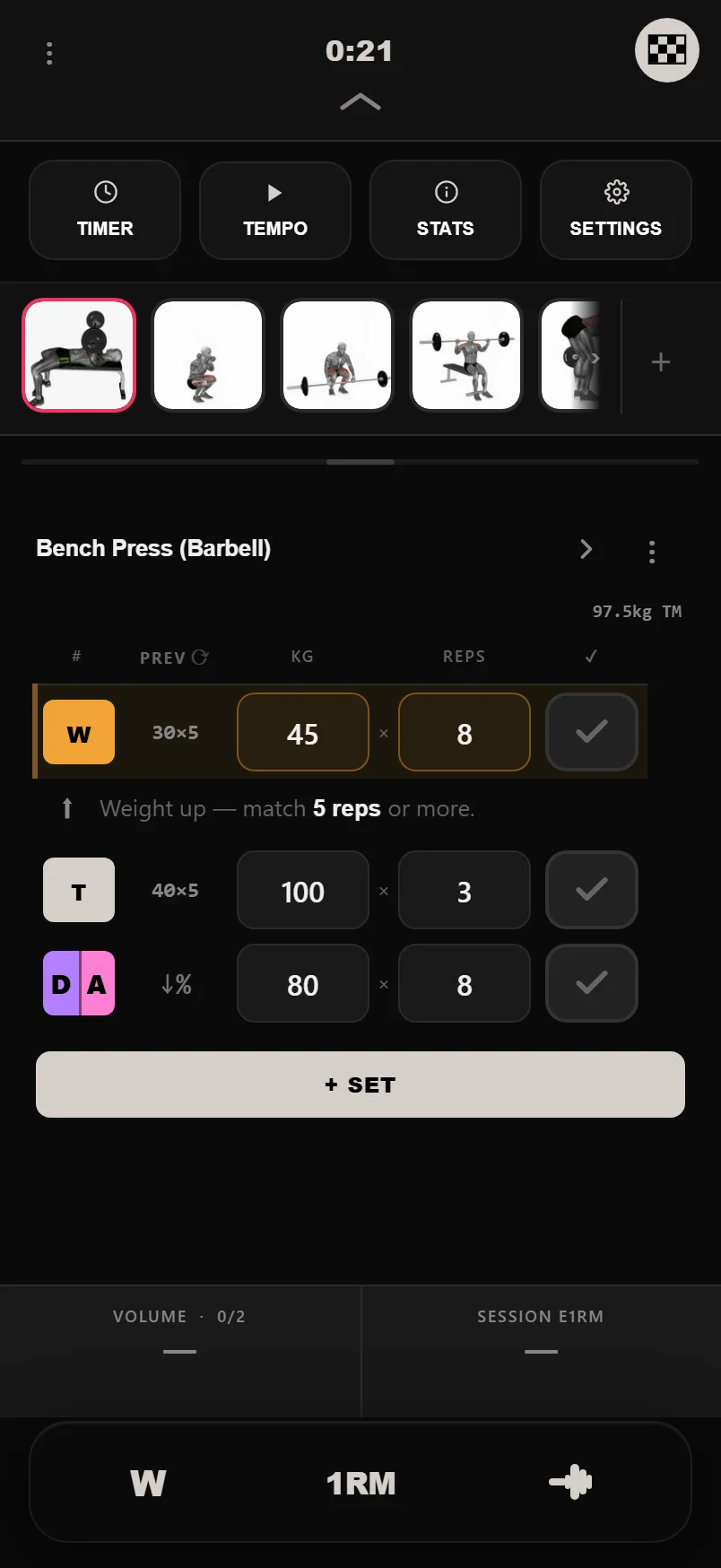
Tap a set's number badge to change its type. There are 10 to choose from: Warm Up, Normal, Top Set, Backoff, Drop Set, Intensity, AMRAP, Rest Pause, Partials and Unilateral. Each gets a colour-coded badge, so a glance down the rows shows the shape of the session.
AMRAP (as many reps as possible) is a modifier that can ride on top of any base type - a top set or a backoff can also be AMRAP, and the badge splits into two colours to show both. AMRAP sets get a live target: the reps at your entered weight that would beat your estimated 1RM.
Percentage-based sets do the maths for you: an Intensity set takes a percentage of your training max (or estimated 1RM) and fills in the weight; Drop and Backoff sets take a percentage reduction from the set before them.
Auto-fill and coaching hints
Every weight and rep field shows what you did last session as a faint placeholder. Ticking off a set you haven't typed into logs those values - a blank tick means "same as last time", which keeps repeat sessions down to one tap per set.
Above the next set, DropSet shows a short coaching hint based on your history and the set's type - "Last time: 60x8 - start here or go heavier". Turn off Progression Hints in Settings if you'd rather lift in silence.
Numeric inputs select their contents on focus, so you type over old values instead of deleting them.
The header and bottom bars slide away while you type, so the keyboard never buries the row you're editing.
Supersets
Open an exercise's menu and choose Manage Superset to link it with other exercises in the session. Linked exercises share a colour-coded group, and when you finish a set the partner exercise shows as up next.
By default DropSet also auto-advances, jumping to the partner exercise when the rest timer ends. Turn Auto-Advance Superset off in Settings if you'd rather move yourself.
The rest timer
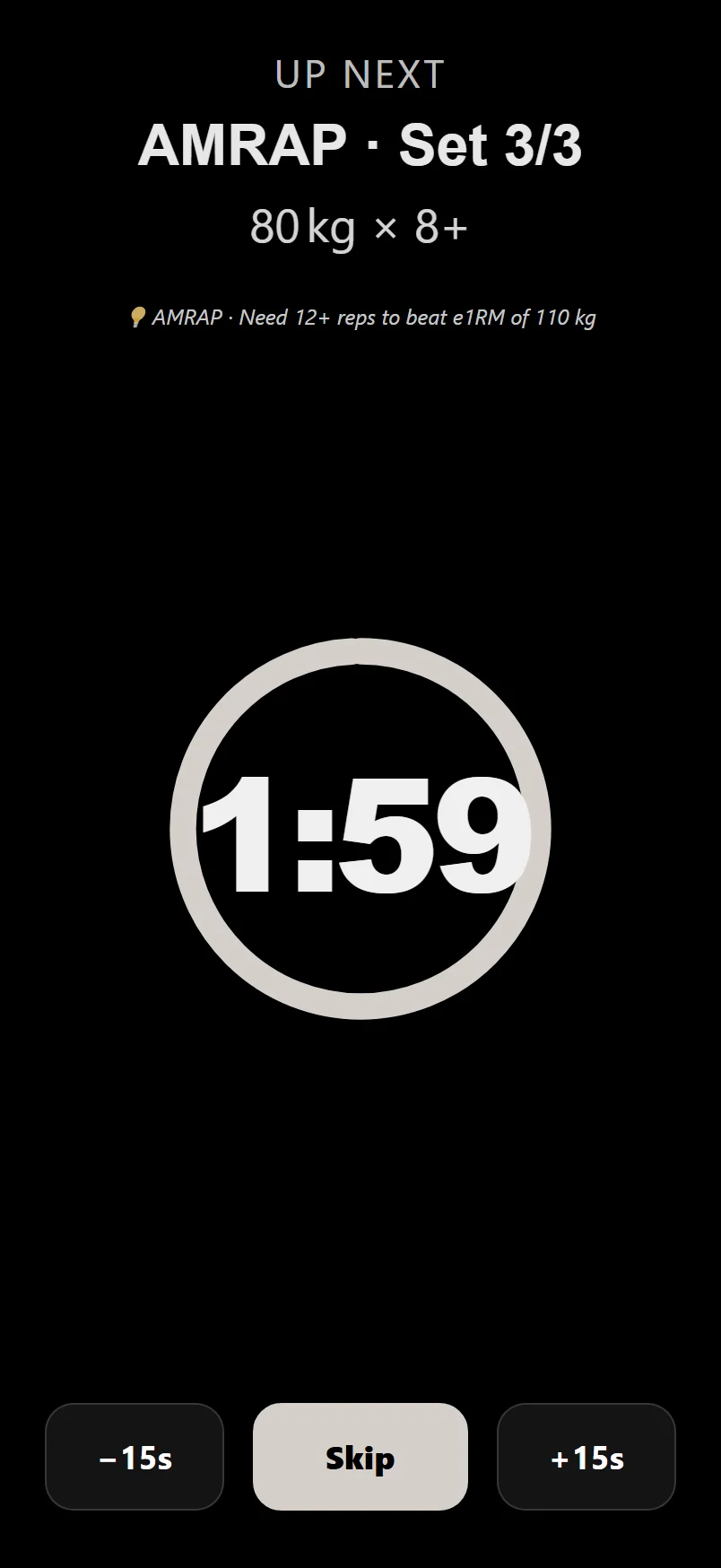
Tick off a set and the rest timer starts on its own. The full-screen view shows the countdown plus what's next - exercise, set number, target weight and reps, and any coaching hint. Nudge the time with the -15s and +15s buttons, or minimise it to a small floating timer and keep scrolling.
You don't need to keep the screen on: when rest ends, DropSet fires a notification telling you what's next, even with the phone locked - and its beeps briefly duck your music instead of pausing it. Each set can carry its own rest time, or None to skip the timer entirely.
The warm-up calculator
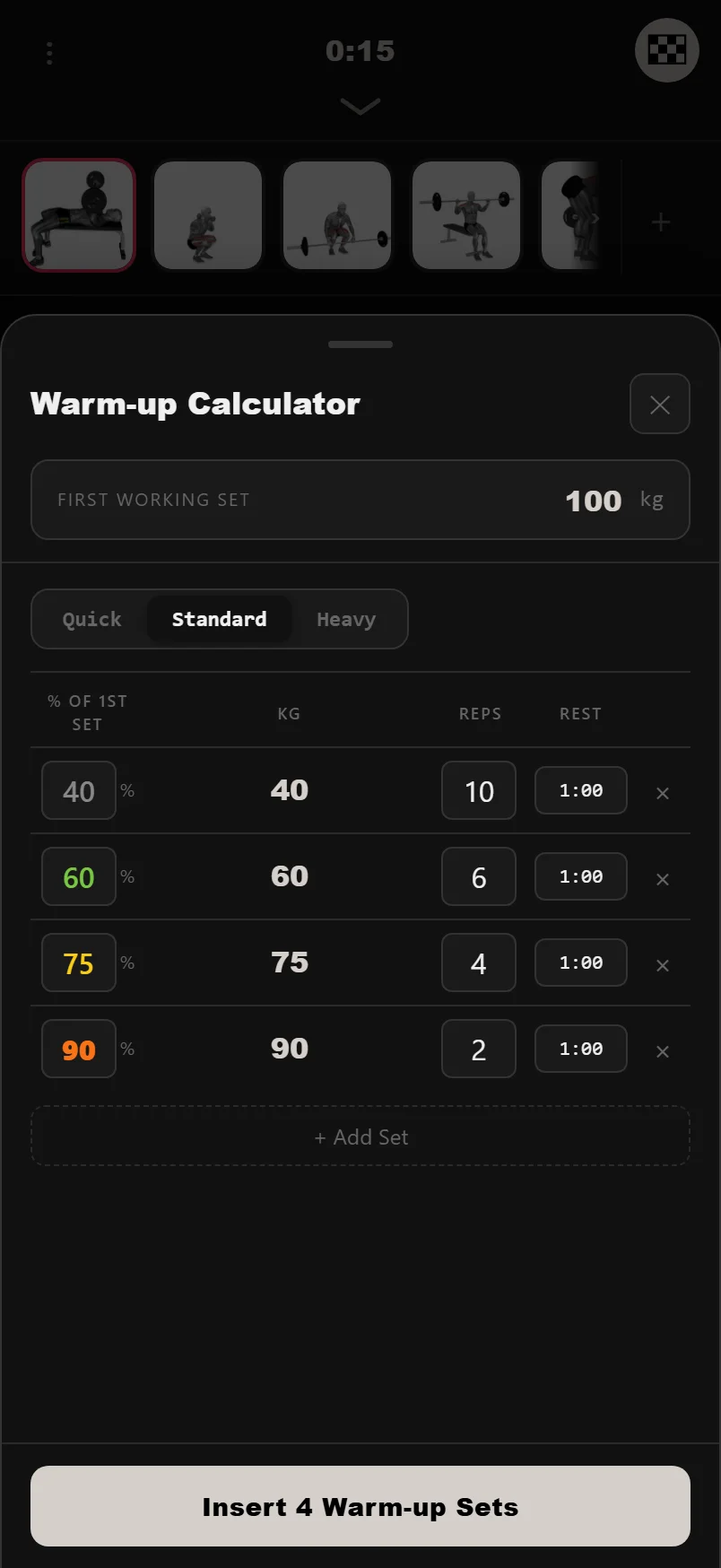
Tap the W button in the bottom bar and enter your first working-set weight; the calculator builds a ramp of warm-up sets, each a percentage of that weight with reps and rest. Everything is editable, you can save your own profiles, and one tap inserts the whole ramp into the current exercise.
The rep max calculator
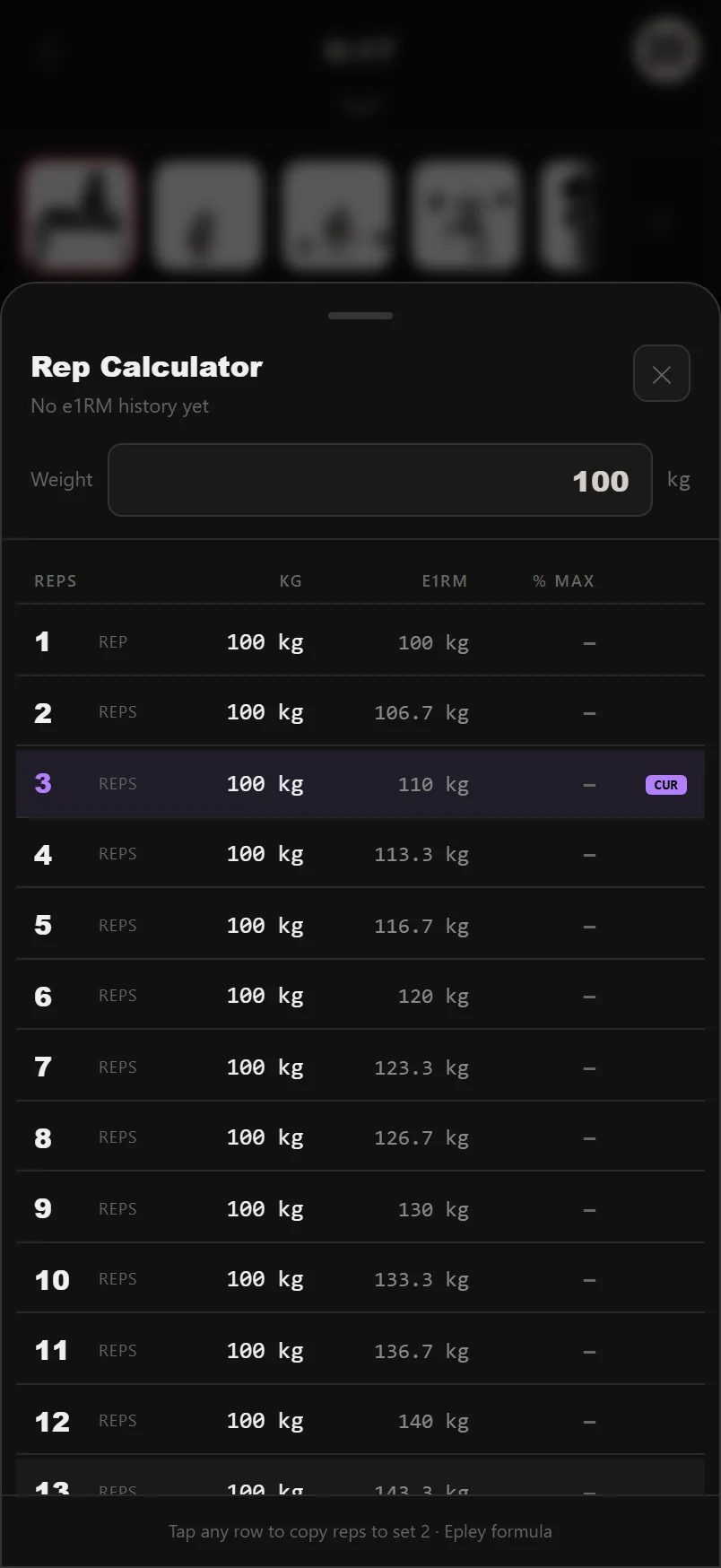
The 1RM button opens the rep max calculator: give it a weight and reps and it estimates your one-rep max with the Epley formula, plus a table of equivalent loads at every rep count. It's the same estimate DropSet uses everywhere, so the numbers always agree.
The plate calculator
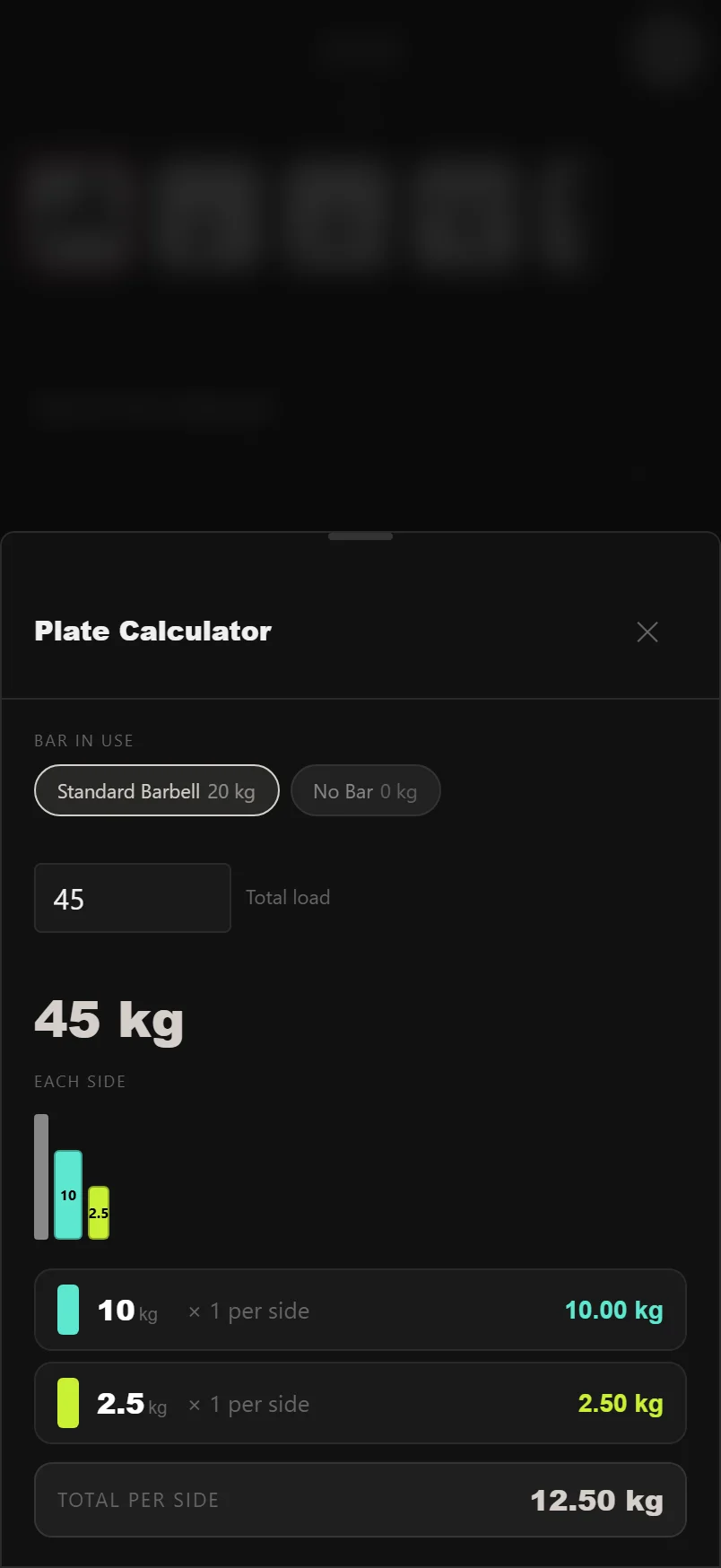
The plate calculator shows exactly which plates to load per side, drawn to scale. It respects the plates you've told DropSet you own - including microplates down to 0.25 kg, configured in Settings - so it never suggests a plate your gym doesn't have.
The tool tray and fatigue bar
Swipe down on the workout header to open the tool tray: Timer (a manual countdown with presets and a custom mm:ss input), Tempo, Stats and Settings. Tempo is a rep-cadence metronome - tap to start it, long-press to edit the tempo. Stats shows live duration, sets and volume, and lets you rename the workout mid-session.
Under the carousel, a thin fatigue bar watches your completed sets and fills as performance drops across the session. Tap it for the signals behind the reading, or hide it in Settings.
Lifting to a tempo
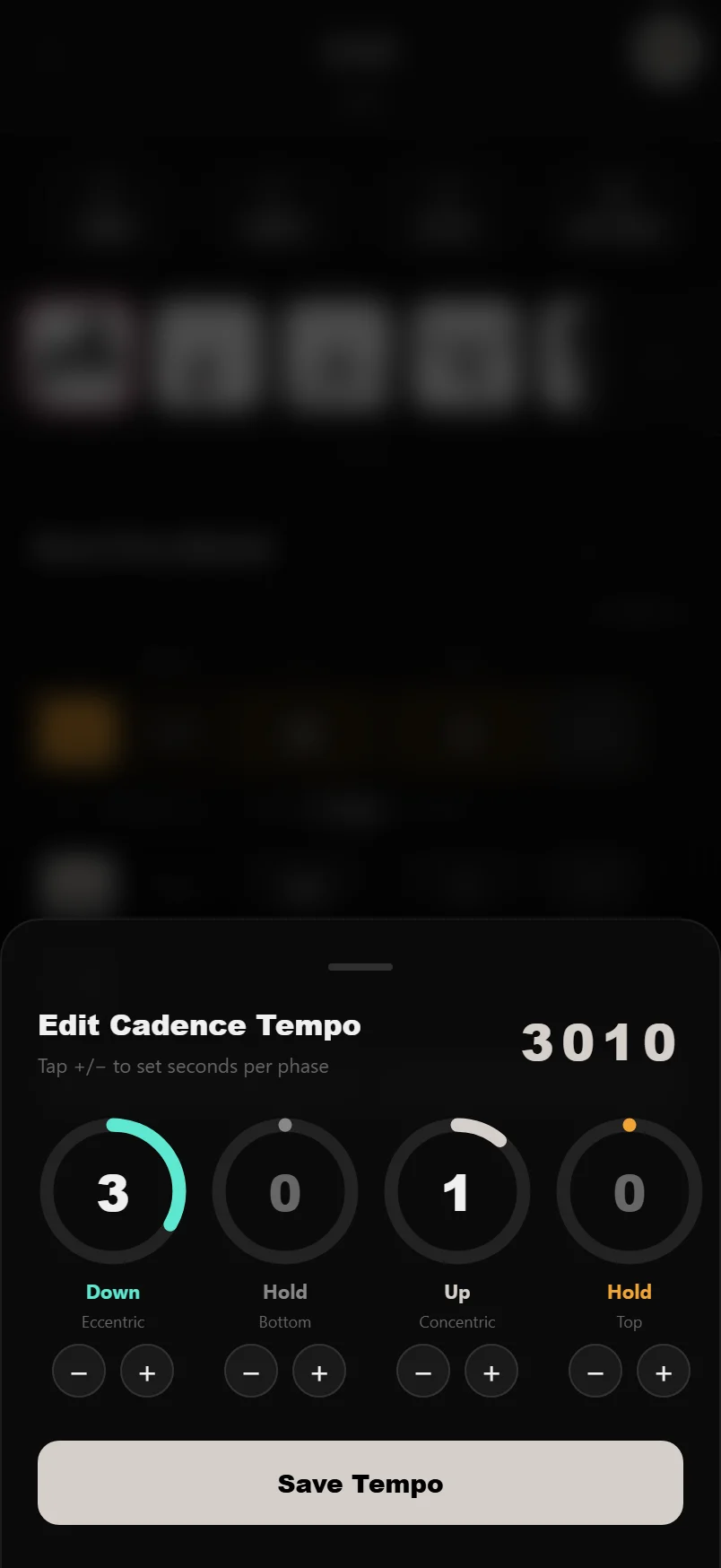
Tempo lifting — controlling how long each phase of a rep takes — is how you make a weight harder without adding plates: more time under tension, stricter technique, no momentum. Coaches write it as four digits like 3-0-1-0: three seconds down, no pause, one second up, no pause at the top.
DropSet's cadence metronome beats that rhythm out loud so you don't have to count. Tap Tempo in the tool tray to start it; long-press to open the tempo editor, where four dials set the eccentric, bottom hold, concentric and top hold — the metronome follows whatever you dial in.
Use it for paused bench and squats, slow-eccentric accessories, or any week where the plan says "3-1-1-0" and you'd otherwise be guessing at seconds mid-set.
Pausing, discarding and finishing
The three-dot menu in the header holds Pause Workout (stops the clock without losing anything) and Discard Workout. Finishing opens the Session Complete screen: duration, sets and volume up top, a notes field, and Save as Routine - the fastest way to turn a good freestyle session into a reusable routine. If you restructured a routine session mid-workout, DropSet offers to save the changes back to it.
You can add a post-workout photo from the same screen - the camera defaults to selfie mode and overlays a faint ghost of your previous photo so every shot lines up. Then share the session as a workout card: five templates (Power, Achievement, Minimal, Photo and Muscle map), square or 9:16 story, with toggles for which stats appear.
Swipe left or right on the share-card preview to flick through the templates.
Common questions
What happens if I close the app mid-workout?
Nothing is lost. The workout is saved on your device as you go, and reopening the app resumes it exactly where you left off.
Does the rest timer work with the screen locked?
Yes. When rest ends DropSet fires a notification telling you what's next, even with the phone locked or the app in the background - and its sounds duck your music rather than pausing it.
How does DropSet estimate my 1RM?
With the Epley formula (weight x (1 + reps/30)), calculated from your best genuine straight sets. The same formula is used everywhere - logger hints, the rep max calculator and your records.
Can I turn off the coaching hints?
Yes - toggle Progression Hints in Settings. Auto-started rest timers, the fatigue bar and superset auto-advance can each be adjusted there too.
What does checking off a set I haven't filled in do?
It logs last session's values for that set. The faint placeholder numbers are what you did last time, and ticking the set means "same again".
Put it into practice
DropSet is free during beta — 50 proven programs, automatic progression, rest timers and PR tracking, all on your phone.