Programs and routines
Random workouts give random results. A program decides your exercises, sets, reps and weights in advance, so every session builds on the last. DropSet ships 50 proven programs with the progression built in — pick one, set your starting numbers once, and the app calculates every workout from then on.
Prefer to train your own way? The Routine Editor builds any session from scratch, down to individual set types and percentages. This guide covers both.
Last reviewed 2026-07-10 · matches app v0.9.0.32
The Training hub
The Training hub has four tabs — Routines, Programs, Discover and History. Routines is your library of standalone sessions, Programs is the multi-week plans you've added, Discover is the curated catalog, and History shows programs you've finished or ended.
The Programs tab groups plans into Active, Favourites, Programs and Archived; each card carries Start, Planner and a favourite star.
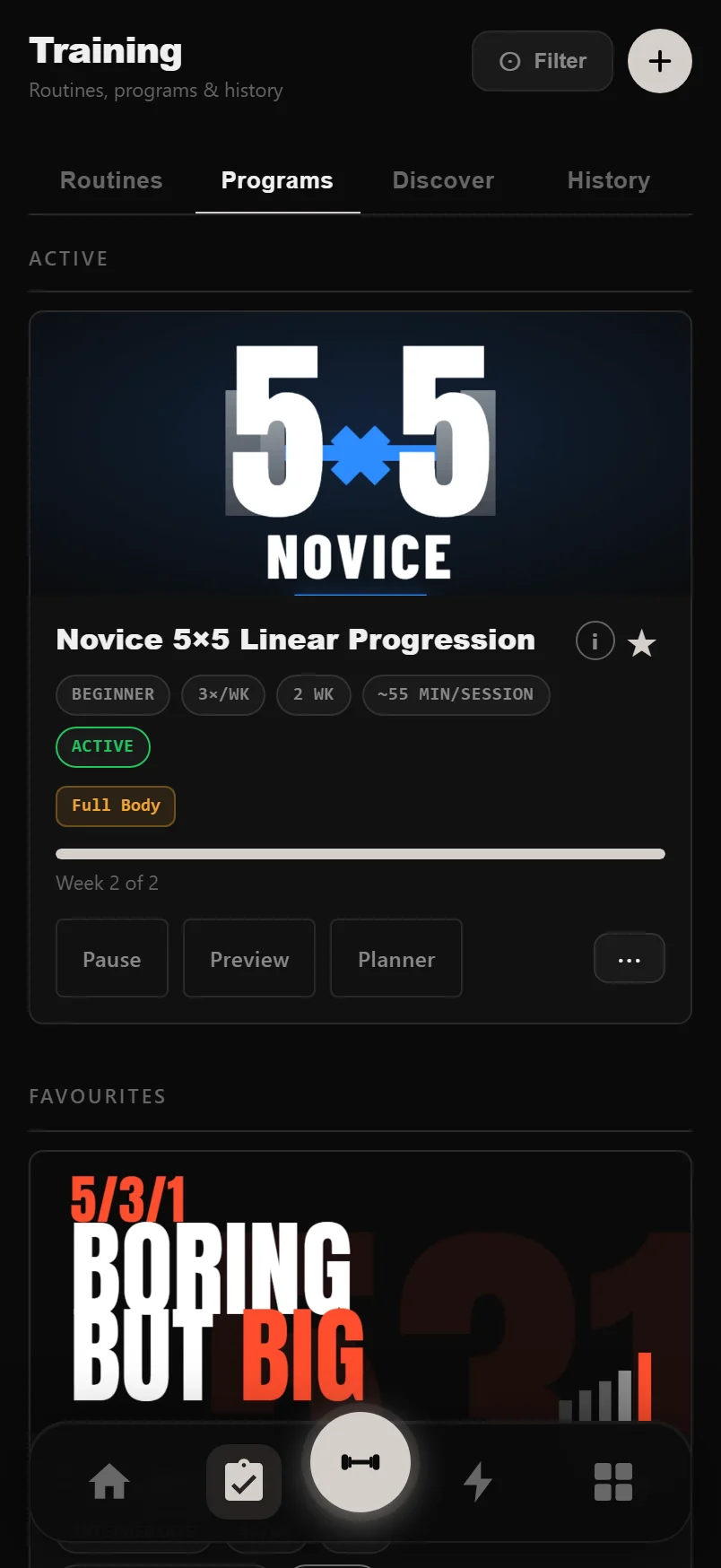
Swipe left or right anywhere in the hub to move between the four tabs — same gesture as the Analytics screen.
Discover: the program catalog
Discover holds 50 curated programs: classics like 5/3/1 For Beginners, Boring But Big, nSuns LP, GZCLP, Metallicadpa PPL, PHUL, Texas Method and Madcow 5x5, plus home dumbbell plans, glute specialisation and time-boxed fat-loss challenges. Every card shows cover art, level, days per week, goal and a session time estimate (like "~45-60 min/session") — computed from the program's volume, then replaced with your real average once you've logged enough sessions.
A community star rating appears once enough people have rated a program. Search matches names and common aliases — typing "stronglifts" or "madcow" finds the right program even where the listed name differs. The Filter drawer narrows by level, days per week and goal; sorting offers Recommended (beginner-first) or Highest rated, a weighted average so one 5-star vote can't outrank a heavily-rated 4.6.
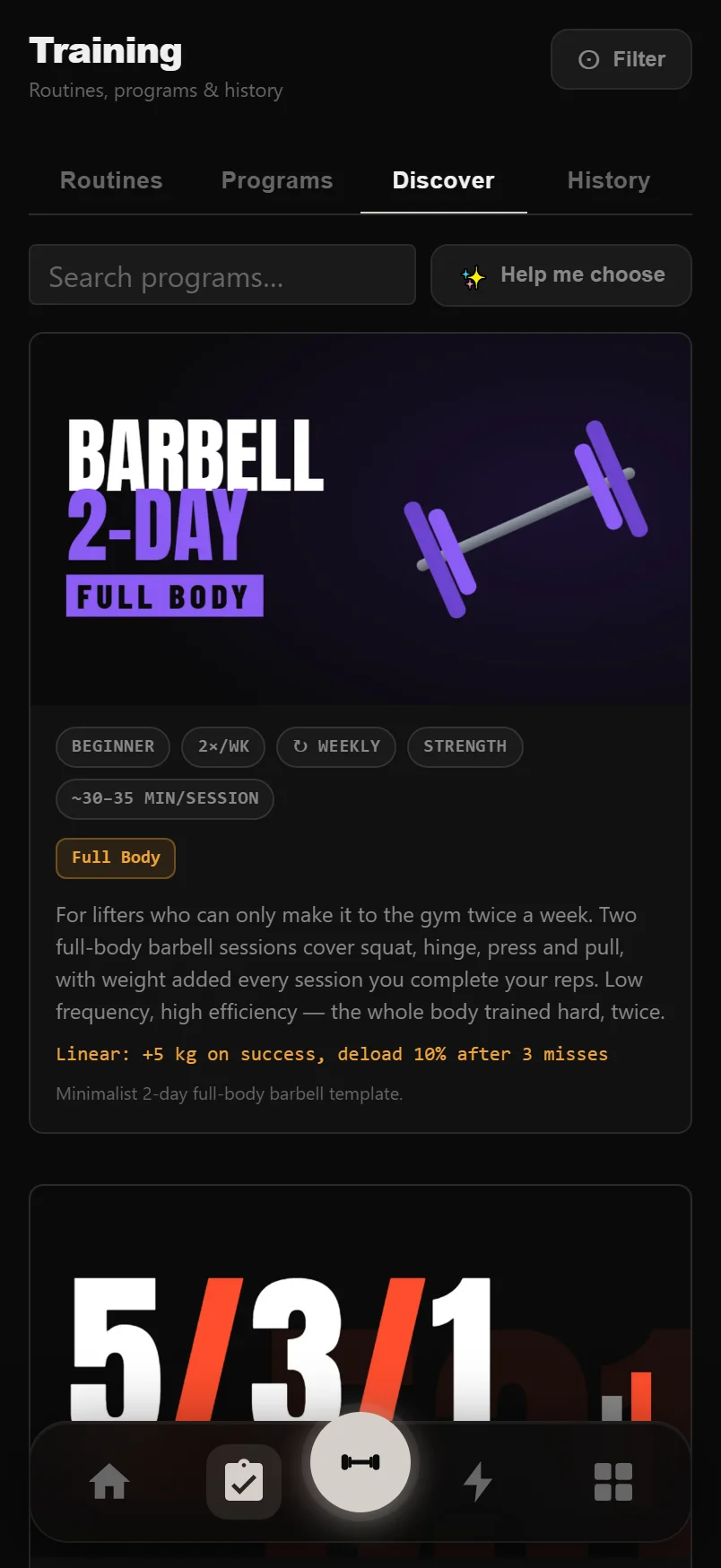
Every star comes from someone who ran the plan — you can only rate a program you've started.
Not sure? Use the Program Finder
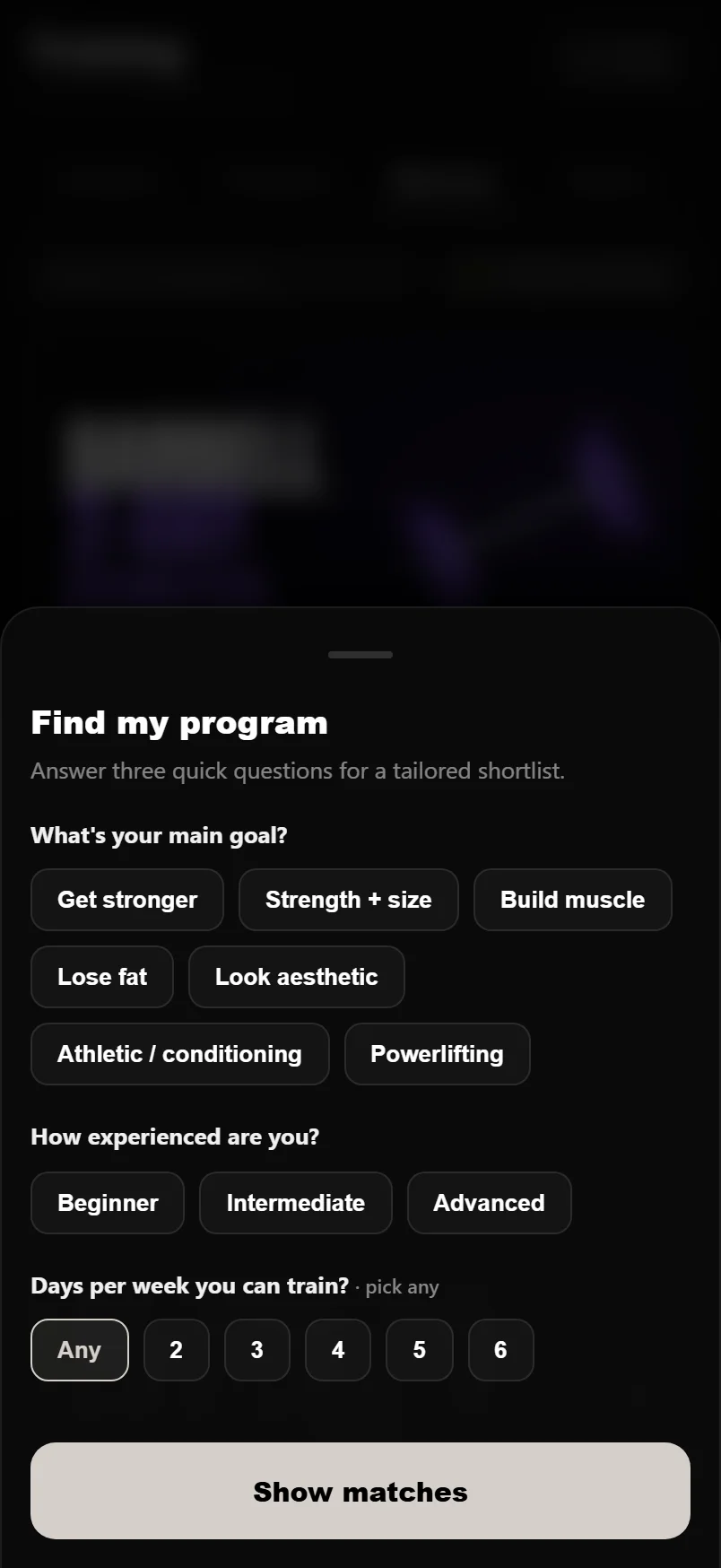
Tap "Help me choose" in Discover and answer three quick questions: your main goal, your experience, and the days per week you can train. The finder scores the catalog against your answers and returns a shortlist, best match badged as Top pick. Tap any result to open its detail page and start it there.
How progression works
You never work out the weights yourself. When a program uses training maxes, the app asks for them once at the start — suggesting values from your logged history at 90% of your best estimated 1RM. From then on, every session's targets are computed for you.
There are three main models. Linear progression adds a fixed amount — typically +2.5 kg upper body, +5 kg lower — every time you hit your reps, and drops the weight around 10% after repeated misses so you never stay stuck. Training-max programs like 5/3/1, nSuns and Texas Method work off a percentage of your TM and only bump it when you beat the AMRAP set's target — some per cycle, some per week. Double progression holds the weight until you reach the top of the rep range on every set, then adds. Deload weeks are built in where the program prescribes them, and each detail page describes its rule in plain language.
Some linear programs carry a double-jump rule: smash the AMRAP set hard enough (Greyskull-style) and you earn a double-size weight increase that session.
The week planner
Every program card has a Planner button that opens a week-by-day grid of your sessions. Life moves — so drag any session to a different day of the same week. Dropping it on a day that already has a session asks whether to add both to that day or swap the two days' contents. Moving days never touches exercises or progression.
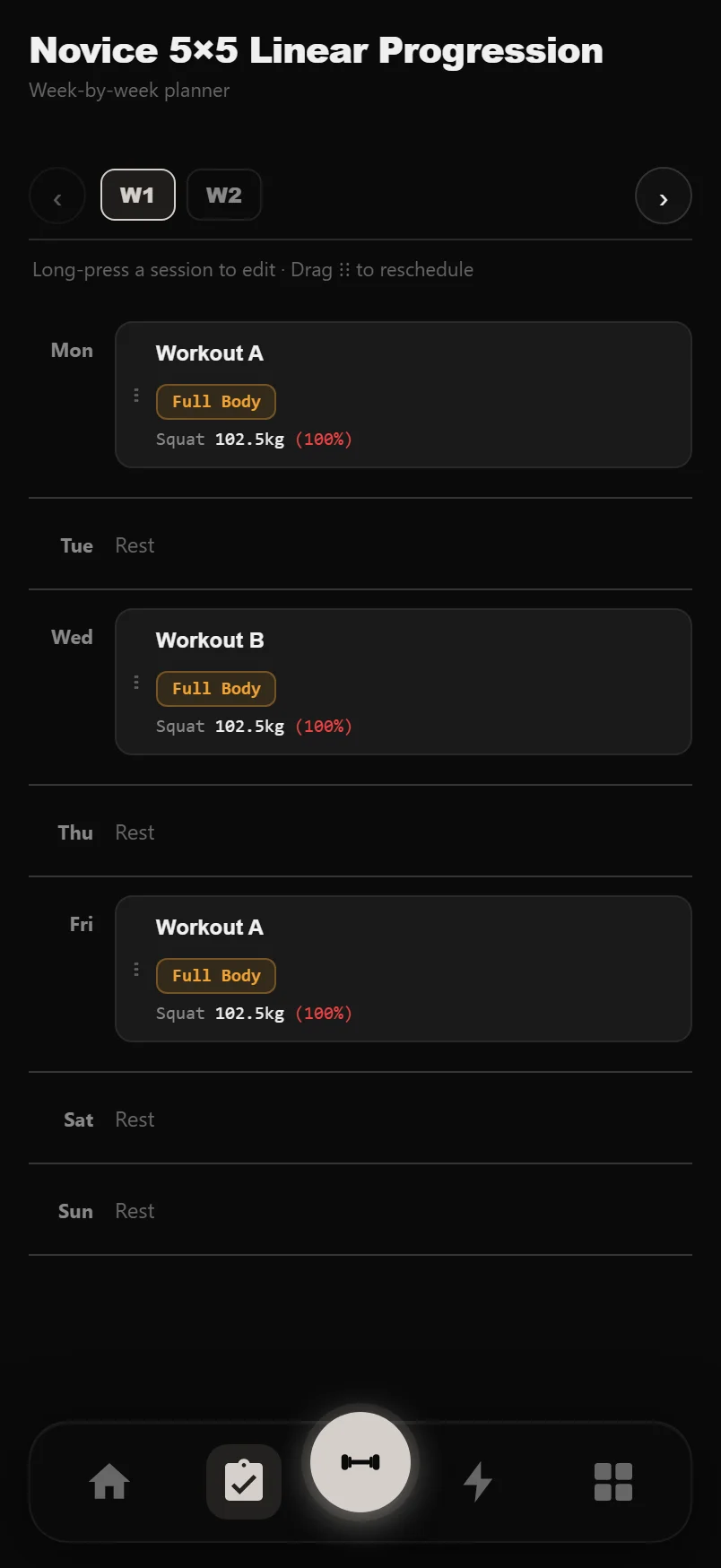
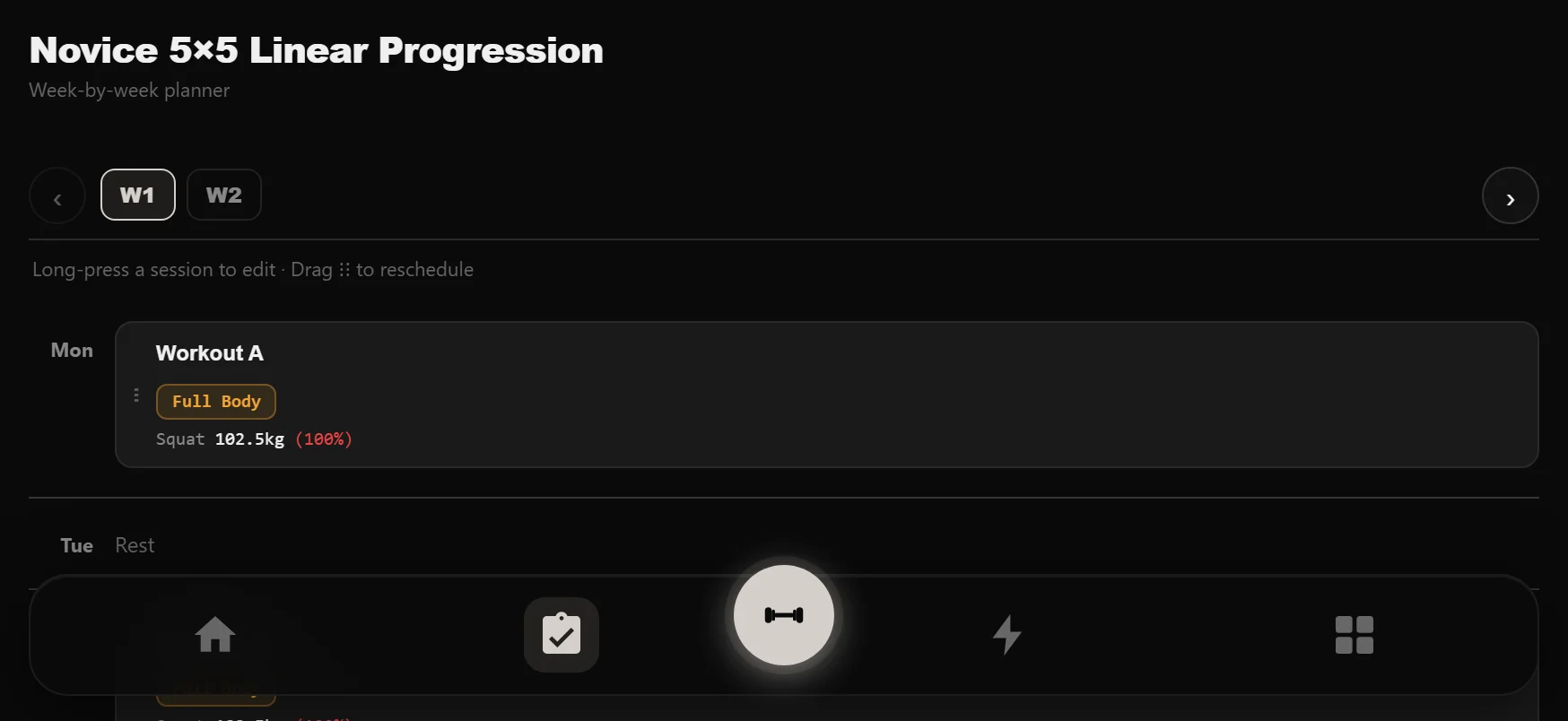
Tap the planner's Rotate button to flip into landscape — the app is otherwise portrait-locked — for a wider week-grid view.
The Program Report
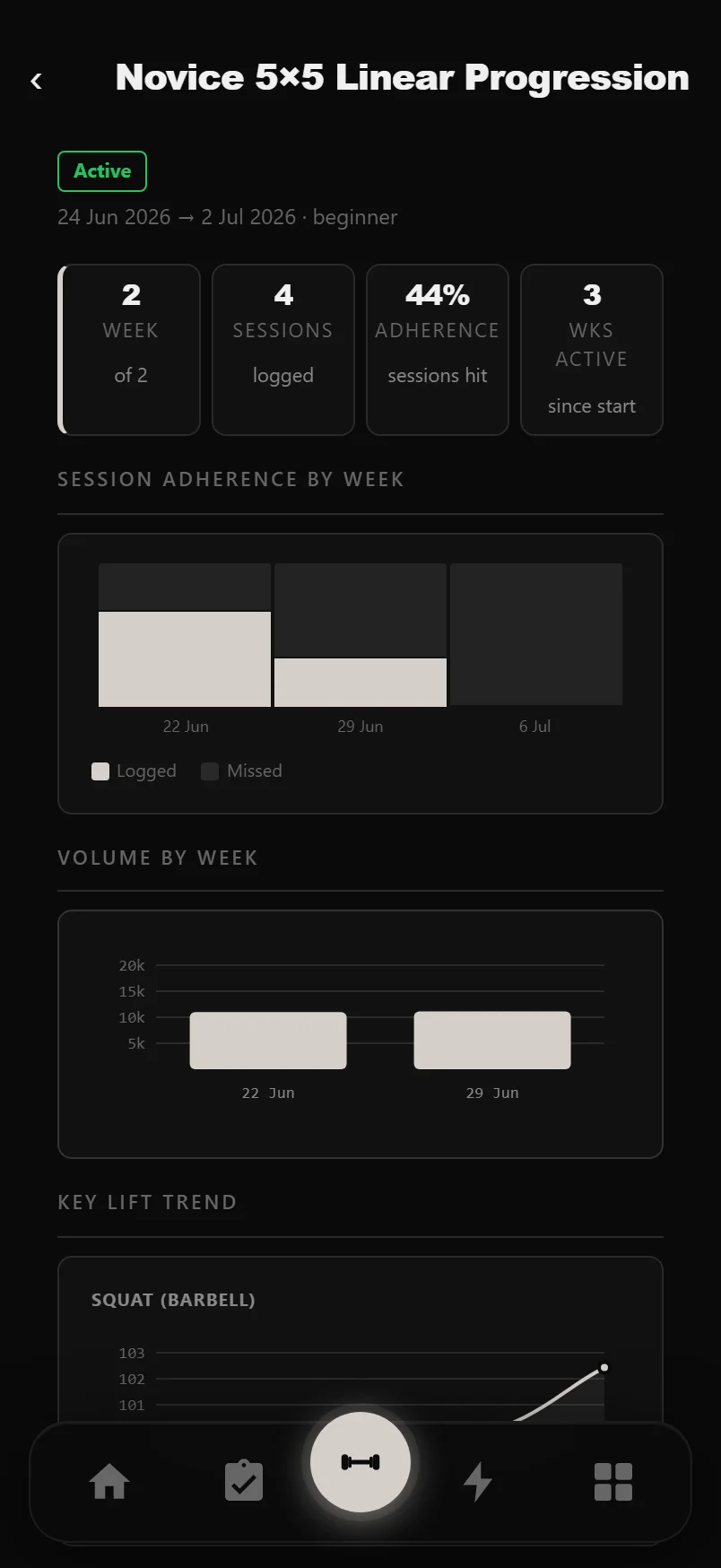
Open a started program and choose View full report: your adherence percentage, a week-by-week adherence chart, total volume and completed sets, current training maxes, and a Training Max Progression chart showing each lift climb over the run. The report stays available from History after a program ends.
Swapping exercises
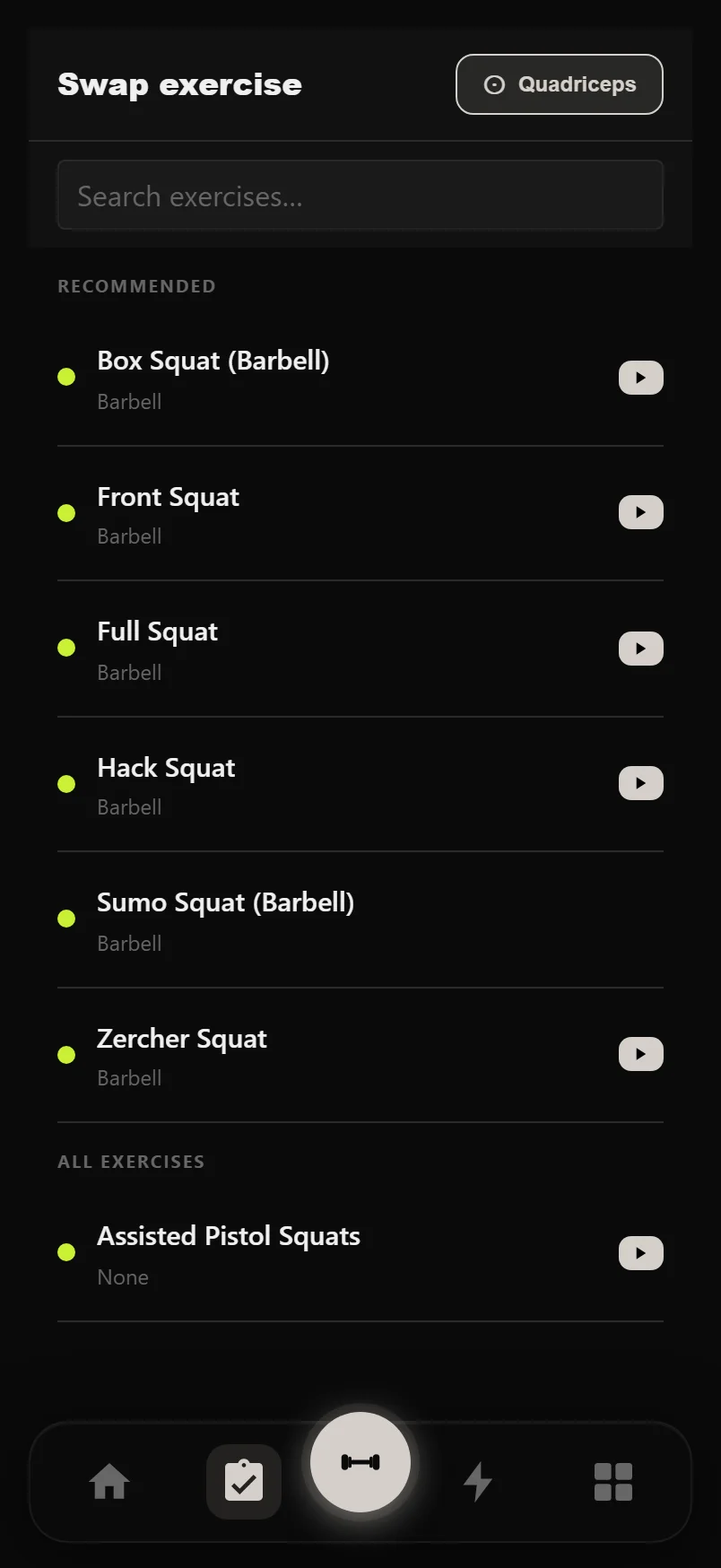
Squat rack taken — or no cable row at your gym? Every exercise line in a program preview has a swap button. It opens the exercise picker with a Recommended section on top — alternatives ranked by how closely they match the original's muscles, movement pattern and equipment — so the substitute still does the same job.
Start, pause, archive
Starting a program asks for training maxes (if it uses them) and a start date, then it goes live on your dashboard and logger. The same button pauses and resumes a running program exactly where you left off. The program menu holds the rest: restart from week 1, end, or archive — archived programs can always be restored.
Building your own routines
The Routines tab holds sessions you design yourself. The Routine Editor works like the logger: add exercises, then set each set's type — Warm Up, Normal, Top Set, Backoff, Drop Set, Intensity, AMRAP, Rest Pause, Partials and Unilateral — with reps, rest and weight. Sets can use an intensity percentage of your training max instead of a fixed weight, and cardio sets get a Steady/HIIT tag per interval.
You don't have to start from a blank page: open any past workout in History and choose Save as Routine to turn a session you actually did into a template.
In the reps field, type a range like "8-12" for a rep range, or add a star — "5*" — to mark the set as AMRAP.
Long-press a set's type badge to delete the set; a tap opens the set-type picker.
Tags, sources and filters
Coming from Strong or Hevy, where you file routines into folders? DropSet organises by labels instead — no folder shuffling. Every routine can carry type tags (push, pull, legs, upper, lower, full, cardio, core) and a free-text Source for where it came from: your coach, a YouTuber, a programme you're adapting.
Open a routine's menu and choose Organize to set both in one sheet; tags show as chips on the routine card. Sessions that belong to a program are grouped under that program automatically, so your library never turns into one long list.
The payoff is the filter bar: filter by type tag, by source, by favourites, include archived, and sort — so "all my pull days" or "everything from my coach" is two taps, even with a big collection.
Favourite (star) the routines you run most and they surface first; duplicate one from its menu to build a variation without touching the original.
Common questions
Do I have to calculate my own weights?
No. Set your training maxes once when you start a program (DropSet suggests them from your logged history) and every session's target weights are computed automatically from the program's progression rule.
What happens when I miss my reps?
Nothing dramatic. Linear programs hold the weight and deload around 10% only after repeated misses; training-max programs simply hold your TM until you beat the AMRAP target. The program keeps moving either way.
Can I move my training days around?
Yes — open the Planner from any program card and drag sessions between days of the week. If the target day is taken, DropSet asks whether to stack both sessions or swap the days.
If I delete a program, do I lose my workout history?
No. Deleting a program removes the plan and its scheduled sessions, but every workout you logged stays in your history and analytics.
Can I change an exercise in a built-in program?
Yes. Use the swap button next to any exercise to pick a replacement — the picker recommends alternatives that match the original's muscles, movement and equipment, so the program still does its job.
Can I organise routines into folders like Strong or Hevy?
DropSet uses tags and sources instead of folders: label a routine by type (push, pull, legs and so on) and by where it came from, then filter the library on either. Program sessions are grouped under their program automatically. One routine can carry several tags — something a single folder can't do.
Put it into practice
DropSet is free during beta — 50 proven programs, automatic progression, rest timers and PR tracking, all on your phone.