Getting started with DropSet
DropSet is a gym log and program planner for Android. You log your sets in the gym, the app calculates what you should lift next, and everything syncs to the cloud so your training history is never lost.
This guide takes you from a fresh install to your first look around: creating an account, the first-run checklist, what everything on the dashboard means, and how to bring years of history with you from another app. It takes about five minutes.
Last reviewed 2026-07-10 · matches app v0.9.0.32
Install the app and create your account
DropSet lives on the Google Play Store. Account creation happens in the Android app only — the web dashboard (a DropSet Pro feature) is for logging into an account you already have, not for creating one.
There are no passwords. You sign in with your email address and a 6-digit code — DropSet emails you the code, and the moment you type or paste the sixth digit it submits itself. No verify button, no password to forget.
DropSet is currently in beta, which means two things: you need a spot on the waitlist (join at dropsetapp.com) before your first sign-in will work, and every Pro feature is unlocked for free while the beta runs. The first 50 waitlist signups get lifetime Pro.
- Install DropSet from the Google Play Store.
- Open the app and enter your email address.
- Check your inbox for the 6-digit code and type it in — it submits automatically on the sixth digit.
- You're in. Everything you log from here syncs to your account.
The first-run checklist
On first launch DropSet shows a short welcome sheet with a handful of optional setup actions: import your history from another app (Strong, Hevy, Loadline or a CSV), set up your profile (sex, age, units), find a training program from the 50 built in, and — on Android — connect Health data for steps, sleep and nutrition.
None of it is mandatory. The big button at the bottom is 'Log a workout now', and if you dismiss the sheet DropSet drops you straight into the logger. You can re-run the checklist any time — the new-user card on the dashboard has a 'Redisplay Onboarding' option.
A tour of the dashboard
Home is a stack of cards, and every one of them earns its place: This Week (a 7-day overview of logged and planned sessions plus stat tiles), your Active Program's Up Next session, Last Workout, Recovery Score, Training Load and Weekly Sets charts, This Week's PRs, and pinned Bodyweight, Sleep and Nutrition tiles.
The Up Next card is the one you'll use most. It shows today's planned session from your active program — tap the card to preview the full session, exercise by exercise with reps and working weights already resolved from your history, or hit the play button to start lifting immediately.
The stack is yours to rearrange. Scroll to the bottom and tap Customize Dashboard: drag cards into whatever order suits you and hide the ones you don't use. The layout syncs to your account, so it follows you across devices.
In the header you'll find your streak chip. Each day you log a workout adds one day. Up to 3 rest days are allowed before the streak breaks — the chip turns amber after 2 rest days and red after 3, when it's train today or lose it.
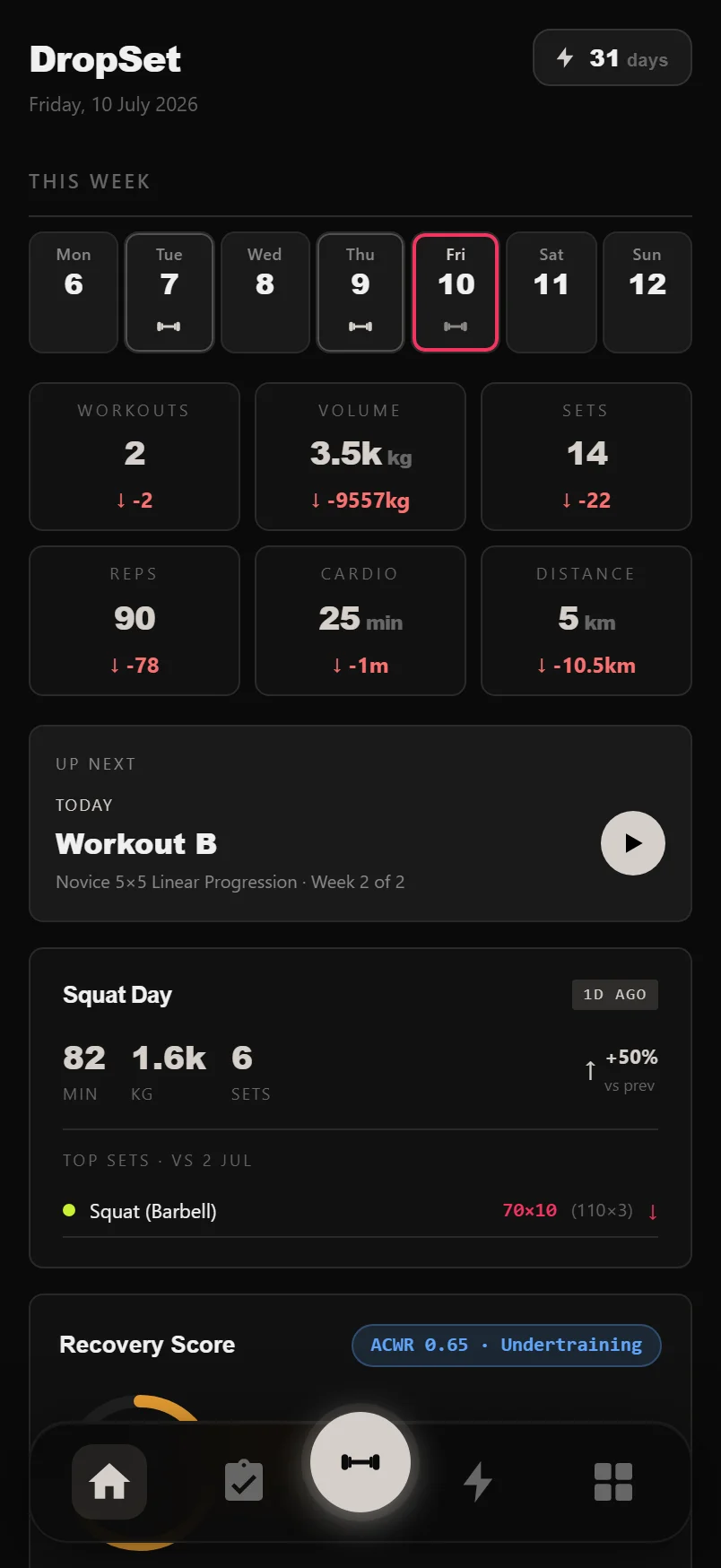
Long-press anywhere on the This Week overview to jump straight to the full History calendar.
Tap the streak chip itself for a plain-English explainer of exactly how the streak and rest-day rules work.
The line under the date shows your live sync status — a green dot and 'Synced 2m ago' means everything is safely in the cloud.
Bring your training history with you
Years of logs in another app shouldn't keep you there. DropSet imports CSV exports from Strong, Hevy and Loadline (plus its own format) via Settings, under Import CSV — or straight from the first-run checklist.
The import is re-import safe: run the same file twice and nothing duplicates. New sessions are inserted, changed ones are updated, identical ones are skipped. Exercises DropSet doesn't recognise aren't dropped — they're matched to the 415-exercise library where possible, and anything genuinely unique is created as a custom exercise so your history stays complete.
Units take care of themselves: Hevy exports state their unit in the file (kg or lb) and DropSet converts automatically, and Strong files are auto-detected the same way whenever the file says which unit it uses. The unit selector next to the import button only matters for Strong files that don't — set it to match how that app was set up.
Getting around the app
The bottom navigation has five buttons: Home (the dashboard), Training (the programs hub), Log (the barbell button in the middle — your workout logger), Analytics, and More.
More opens a grid holding everything else: Exercises, History, Cardio, Body, Gallery, Nutrition, PR Board, Goals and Settings. If you can't find something, it's in there.
DropSet works offline and syncs when you're back online, so a gym with no signal never costs you a set.
The barbell Log button doubles as the sync indicator — a thin ring spins around it whenever DropSet is saving to the cloud.
With a workout in progress, the dashboard shows a pulsing LIVE banner — tap it to jump straight back into your session.
Common questions
Do I need to create a password?
No. DropSet is passwordless — you sign in with your email and a 6-digit code that's emailed to you each time. The code submits itself as soon as you enter the sixth digit.
Can I sign up on the website?
No — accounts are created in the Android app only. The web dashboard is a DropSet Pro feature for logging into an existing account on a bigger screen.
Is DropSet free?
During the beta, yes — every Pro feature is unlocked for everyone, and the first 50 waitlist signups get lifetime Pro. You'll need a waitlist spot at dropsetapp.com to sign in.
Will importing my Strong or Hevy history create duplicates?
No. Imports are re-import safe: identical sessions are skipped and changed ones are updated, so you can run the same export twice without doubling anything up. Unrecognised exercises are added as custom exercises rather than lost.
Does DropSet work without signal at the gym?
Yes. Everything works offline and syncs automatically when you're back online — the spinning ring around the barbell Log button shows when a sync is in flight.
Put it into practice
DropSet is free during beta — 50 proven programs, automatic progression, rest timers and PR tracking, all on your phone.